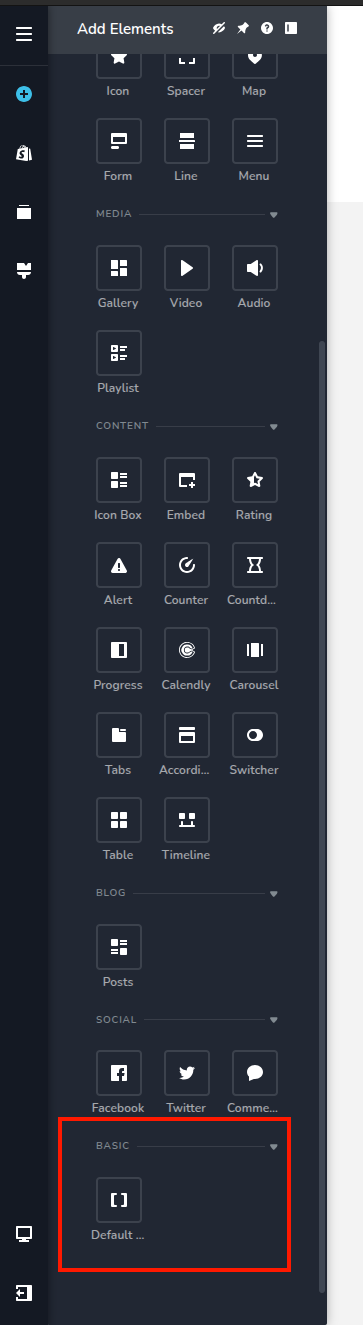
Registering Your Widgets
Third-party widgets are registered in Brizy using the registerComponent method of the Brizy class from the @brizy/core library (included by default). Component registration informs the builder of additional available widgets beyond the default set. Accurate parameter values are crucial for this process to function correctly.
import { Brizy } from "@brizy/core";

export function Button() {
  return <div className="button">This button will be render in editor</div>;
}

export function ButtonView() {
  return <div className="button button-view">This button will be render in View</div>;
}

Brizy.registerComponent({
  id: "Brizy.ThirdParty.Button",
  component: {
    editor: Button,
    view: ButtonView,
  },
  title: "Button",
  truncate: false,
  category: "custom",
  categoryOrder: 1,
  options: () => [],
});
Parameters of registerComponent
id- the unique component ID. While invisible to the user, it's essential for the builder to distinguish this widget from others.component- an object containing editor and view keys, each specifying the React component to be rendered in the respective mode.title- the widget's display name within the user interface.truncate- controls how long titles are displayed. Whentrue(default), long titles are truncated with an ellipsis ("..."). Whenfalse, titles wrap to multiple lines by word.category- the widget category where your custom widget will be grouped.categoryOrder- specifies the order of categories in the sidebar. The lowest order value will place the category at the top. If multiple elements are registered in the same category with differentcategoryOrdervalues, the lowest value will be applied to the entire category.options- specifies the toolbar controls. Read more here.
Category Ordering Examples
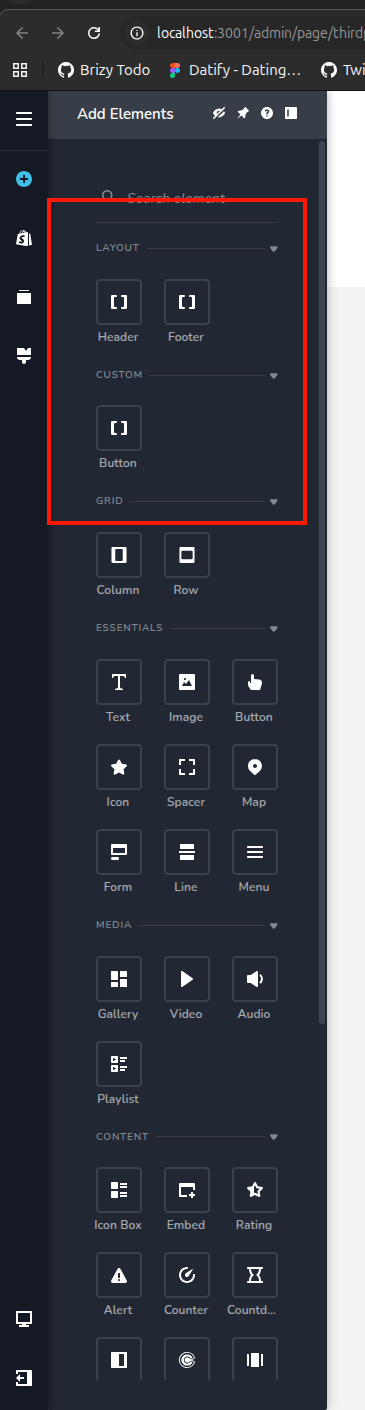
Example 1: Multiple Categories with Different Orders
// Layout category will appear first (order: 1)
Brizy.registerComponent({
  id: "Brizy.ThirdParty.Header",
  component: { editor: Header, view: HeaderView },
  title: "Header",
  category: "layout",
  categoryOrder: 1,
  options: () => [],
});

// Custom category will appear second (order: 2)
Brizy.registerComponent({
  id: "Brizy.ThirdParty.Button",
  component: { editor: Button, view: ButtonView },
  title: "Button",
  category: "custom",
  categoryOrder: 2,
  options: () => [],
});

// This Footer is also in "layout" category, so it will use the same order as Header (1)
Brizy.registerComponent({
  id: "Brizy.ThirdParty.Footer",
  component: { editor: Footer, view: FooterView },
  title: "Footer",
  category: "layout",
  categoryOrder: 5, // This higher order will be ignored, layout category will use order: 1
  options: () => [],
});

// Result: "layout" category appears first, "custom" category appears second
Example 2: Same Category with Different Orders
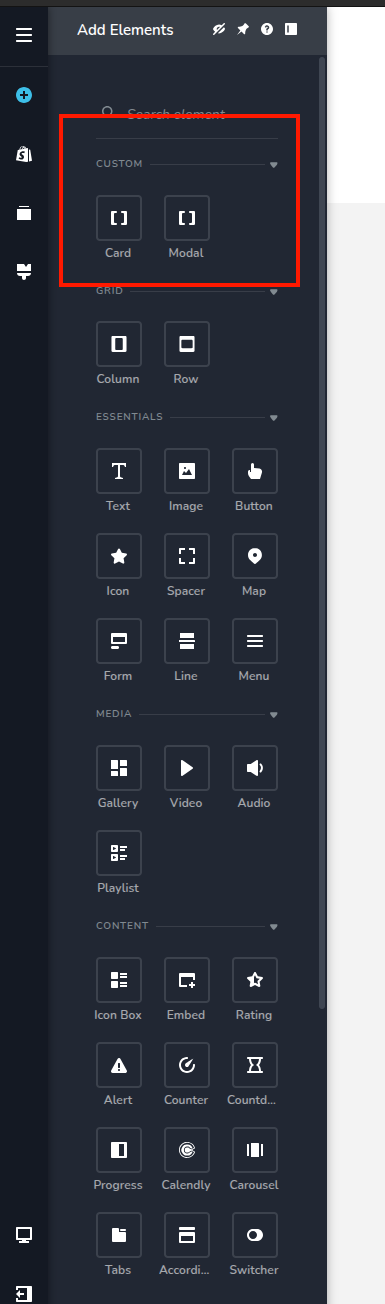
// Both elements are in "custom" category, but the lowest order (1) will be applied
Brizy.registerComponent({
  id: "Brizy.ThirdParty.Card",
  component: { editor: Card, view: CardView },
  title: "Card",
  category: "custom",
  categoryOrder: 5, // This higher order will be ignored
  options: () => [],
});

Brizy.registerComponent({
  id: "Brizy.ThirdParty.Modal",
  component: { editor: Modal, view: ModalView },
  title: "Modal",
  category: "custom",
  categoryOrder: 1, // This lower order will be applied to the entire "custom" category
  options: () => [],
});

// Result: The "custom" category will appear first in the sidebar due to order: 1
Example 3: No Category Order (Default Behavior)
// Elements without categoryOrder will appear after ordered categories
Brizy.registerComponent({
  id: "Brizy.ThirdParty.DefaultWidget",
  component: { editor: DefaultWidget, view: DefaultWidgetView },
  title: "Default Widget",
  category: "basic",
  // No categoryOrder specified
  options: () => [],
});